

Voices and languages
A voice agent needs a voice, and it should keep the same language and accent from the first word to the last. Both are set on the agent page.
You will need: a voice agent open under Agents.
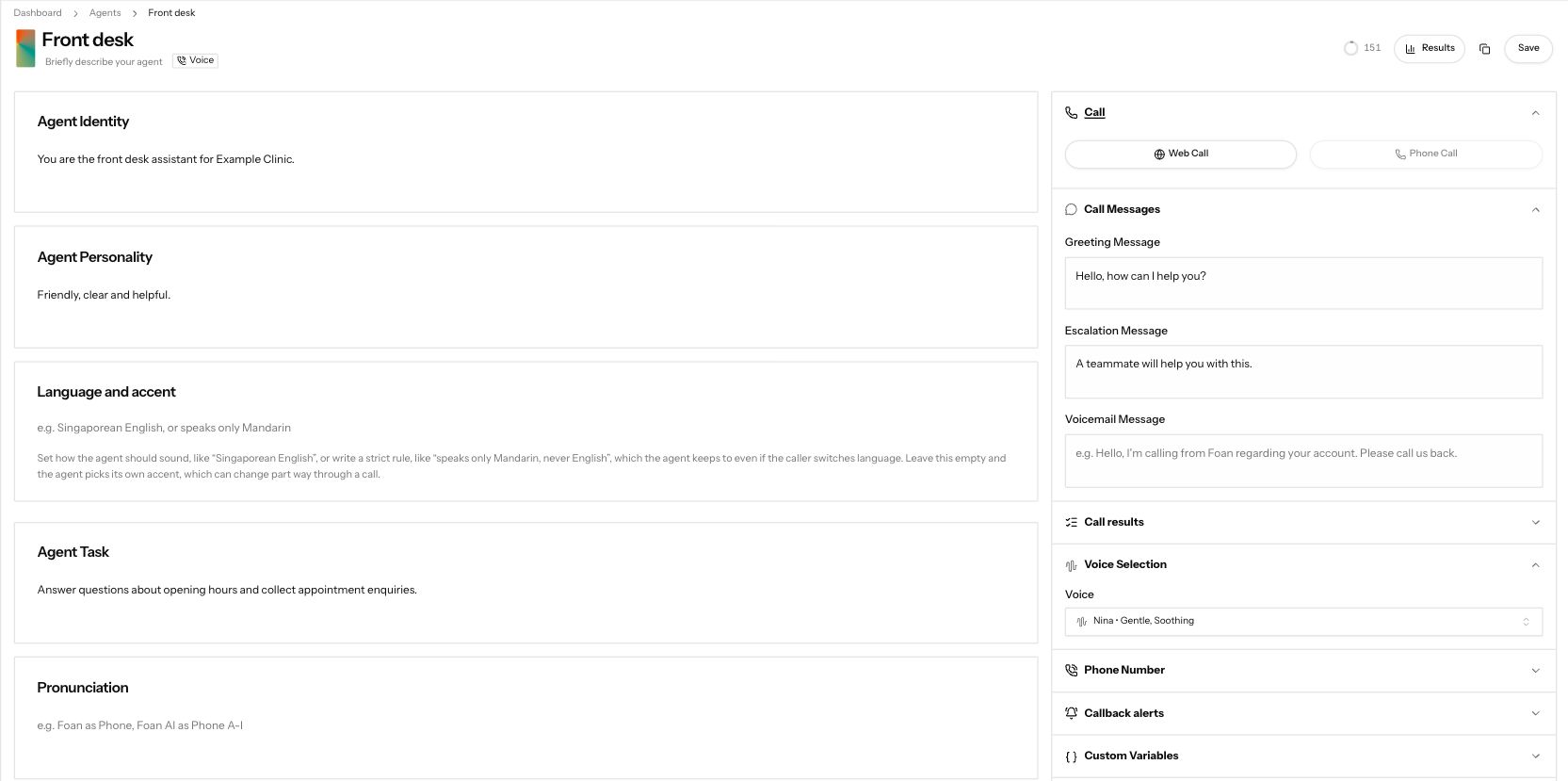
Demonstration data. Voice Selection and Language and accent on a demonstration voice agent.
1. Pick a voice
Section titled “1. Pick a voice”Open Voice Selection and click the Voice box. The list shows each voice with its accent and whether it sounds female, male or neutral. Type in Search voices… to narrow it down, and press the play button on a voice to hear a sample.
Our standard voice is Nina. Pick it, then press Save.
2. Set the language and accent
Section titled “2. Set the language and accent”In Language and accent, write the language and accent the agent speaks, for example “English” or “British English”. The agent holds this for the whole call, even after an interruption.
You can also write a strict rule, such as “speaks only Spanish, never English”. The agent keeps to a rule even if the caller switches language. Keep it short: the box takes up to 200 characters.
If you leave it empty, the agent picks its own accent, and that can change part way through a call. Fill it in.
3. Fix words it says wrongly
Section titled “3. Fix words it says wrongly”If the agent mispronounces a name or a brand, add it to Pronunciation, for example “Okafor as Oh-KAH-for”. Save, then test with a web call.
Common failures
Section titled “Common failures”The agent's accent changes during the call
Language and accent is empty, so the agent picks its own accent and can drift. Write the language and accent in that box and save.
Save says to fill in all required fields, and the Voice box is red
A voice agent cannot be saved without a voice. Pick one under Voice Selection.
I picked a voice and got "This voice is missing a provider Voice ID."
That voice cannot be used right now. Pick another one, and tell us which voice it was so we can fix it.
Next steps
Section titled “Next steps”- Write your agent: the rest of the agent page.
- Test your agent: hear the voice on a real call.