

Write your agent
The agent page is where you tell an agent who it is and how to do its job. Everything is plain English. This page walks through each section from top to bottom. If you have not built an agent yet, start with the Quickstart.
You will need: an agent open under Agents. Voice agents show every section below. Chat agents show the name, Agent Identity, Agent Personality, Agent Task, Call results and the sections from Custom Variables down, plus their own website sections (see Chat widget).
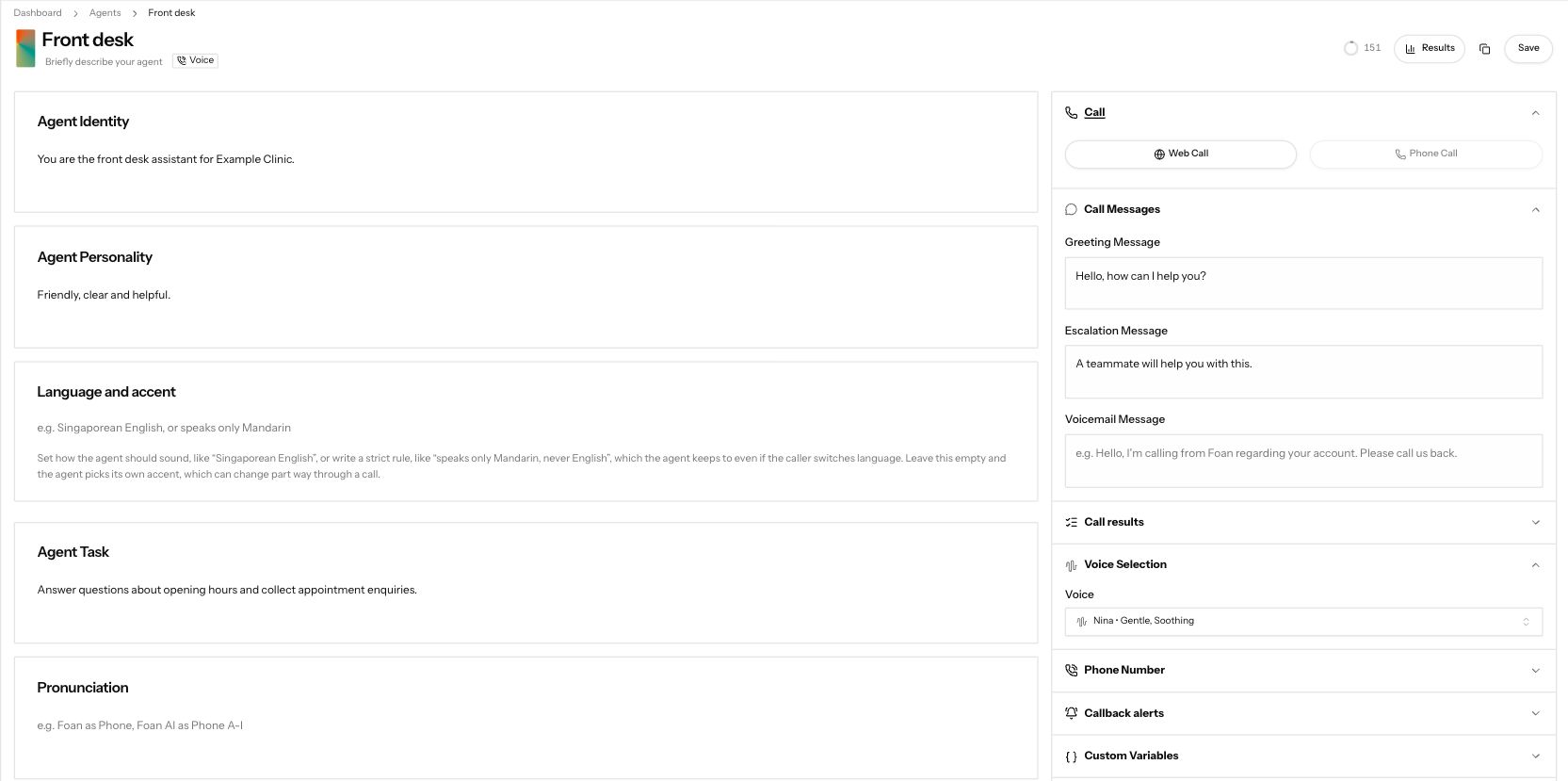
Demonstration data. Write the agent identity, personality and task on the agent page.
1. Name the agent
Section titled “1. Name the agent”At the top of the page, click Enter Agent Name and type a name your team will recognise, such as “Front desk”. Under it you can add a one-line description.
Next to Save is a small counter. It shows how many characters of instructions the agent has in total, across Agent Identity, Agent Personality, Language and accent, Agent Task and Pronunciation. Click it to see which box is longest.
2. Write who it is and what it does
Section titled “2. Write who it is and what it does”| Box | What to write |
|---|---|
| Agent Identity | Who the agent is and who it works for. “You are the front desk for Northside Dental.” |
| Agent Personality | Tone and style. “Warm, brief and patient.” |
| Language and accent (voice only) | The language and accent it speaks, for example “English”. See Voices and languages. |
| Agent Task | The job on every call, step by step. What to ask, what to offer, when to finish. |
| Pronunciation (voice only) | How to say tricky words. “Okafor as Oh-KAH-for.” |
Write the task as short numbered steps. Say what the agent must never do, too, for example “never quote a price”.
3. Write the call messages (voice agents)
Section titled “3. Write the call messages (voice agents)”Open Call Messages. These are said word for word at fixed moments:
| Message | When it is said |
|---|---|
| Greeting Message | The first thing the agent says when the call starts. Required. |
| Closing Message | What the agent says before ending the call. |
| Escalation Message | Said when the agent needs to hand the caller to a person or cannot help. Required. |
| Voicemail Message | Left if the call goes to voicemail. Required. |
To use a caller’s details in a message, type @ and pick a variable, for example the caller’s name.
4. Pick a voice and set what counts as a result
Section titled “4. Pick a voice and set what counts as a result”Under Voice Selection, pick the voice. See Voices and languages.
Under Call results, list the outcomes you want counted for this agent, for example “Booked”. Each one gets its own tile on Results.
5. Give it a number (voice agents)
Section titled “5. Give it a number (voice agents)”After the first save, a Phone Number section appears. Pick the number this agent calls out from. Until it has one, the section says “No number assigned. This agent cannot make outbound calls or run campaigns.” Press Manage to go to your numbers. To choose which agent answers incoming calls, use Inbound.
6. Add variables, knowledge, tools and memory
Section titled “6. Add variables, knowledge, tools and memory”| Section | What it does |
|---|---|
| Custom Variables | Details you pass in with each call, such as an order number. The caller’s name and phone number are always there. Press Add Variable to add one. |
| Knowledge Bases | Attach your documents so the agent can answer from them. See Knowledge bases. |
| Product Search | Attach a product catalogue so the agent can look up items and prices. See Catalogue. |
| Integrations | Tools that let the agent check or book things in your own systems during a call. See Tools and integrations. |
| Memory | See Memory. |
7. Set the timezone and save
Section titled “7. Set the timezone and save”Open Settings and set the Timezone the agent works in. In the same section, Clone makes a copy of the agent and Delete removes it.
Press Save at the top. Then test the agent.
Common failures
Section titled “Common failures”Save shows "Please fill in all required fields."
A required box is empty and is outlined in red. Every agent needs a name, Agent Identity, Agent Personality and Agent Task. A voice agent also needs a voice, a Greeting Message, an Escalation Message and a Voicemail Message.
Save says the instructions are over the character limit
All instruction boxes together are over the limit. Click the counter next to Save to see which box is longest, shorten it, and move detailed product information into a knowledge base.
Save says "Custom variable names must be unique."
Two variables under Custom Variables have the same name. Rename or delete one.
Save says "Maximum 5 function tools allowed per agent"
An agent can have up to 5 tools under Integrations. Delete the ones you do not need, or combine two into one.
I cannot find the Phone Number section
It only shows on a voice agent that has been saved at least once. Press Save, then look again.
Next steps
Section titled “Next steps”- Voices and languages: pick the voice and hold the language.
- Test your agent: talk to it before it takes real calls.
- Tools and integrations: let it use your own systems.
- Answer calls on your number: put it to work.