

Set up a website chatbot
A chat agent is a website chatbot that answers visitors in a small chat window. It works the same way as a voice agent: you write who it is and what it does in plain English.
You will need: an owner or admin login, and access to edit your website (or someone who can paste a snippet into it).
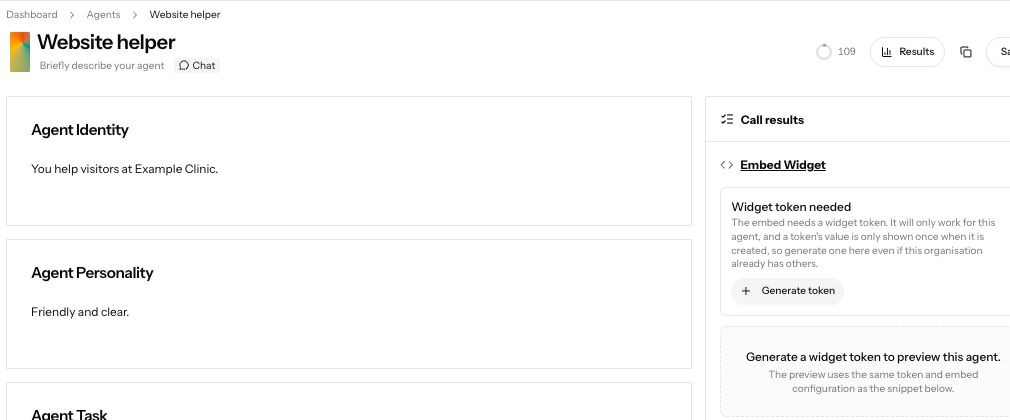
Demonstration data. A saved chat agent with Embed Widget open and Generate token available.
1. Create a chat agent
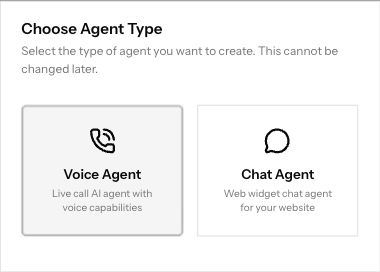
Section titled “1. Create a chat agent”Open Agents and press New Agent. In Choose Agent Type, pick Chat Agent. Fill in the name, Agent Identity, Agent Personality and Agent Task the same way as for a voice agent (see Write your agent), then press Save.
2. Generate the widget token
Section titled “2. Generate the widget token”On the saved chat agent, open Embed Widget. It says Widget token needed. Press Generate token. The token fills itself into the snippet below, and the heading changes to Widget token ready.
A Try it preview of the widget appears on the page, so you can chat with your agent before you put it on your site.
3. Paste the snippet on your website
Section titled “3. Paste the snippet on your website”Press Copy on the HTML snippet and paste it into your website, on every page where the chat should appear. Most website builders have a box for custom code in the header or footer. A Chat button then shows on your site.
4. Let visitors call from the chat (optional)
Section titled “4. Let visitors call from the chat (optional)”Open Web Call on the chat agent and turn on Allow in-browser voice calls. Press Save, then copy the snippet again and replace the old one on your site. The widget gets a phone icon, and visitors can talk to your agent from their browser without leaving the page.
Common failures
Section titled “Common failures”I cannot see Embed Widget
It only shows on a saved Chat Agent, and only for logins that can manage the account. Save the agent first. If your login is limited to taking calls, ask your manager to set up the widget.
The widget stopped working on my site
The token may have been revoked. Open Embed Widget, press Generate another, copy the new snippet and replace the old one on your site.
I turned on voice calls but there is no phone icon on my site
The snippet changes when voice calls are turned on. Save the agent, copy the snippet again, and replace the one on your website.
I picked Voice Agent by mistake
The agent type cannot be changed. Create a new agent and pick Chat Agent.
Next steps
Section titled “Next steps”- Chat history: read every conversation from your site.
- Knowledge bases: let the agent answer from your documents.
- Answer calls on your number: the same help on the phone.