

Quickstart: your first agent
Build a voice agent, then call it from your browser. No phone number is needed for this. When it sounds right, you put it on a number or use it in a campaign.
You will need: a Foan account you can sign in to as an owner or admin.
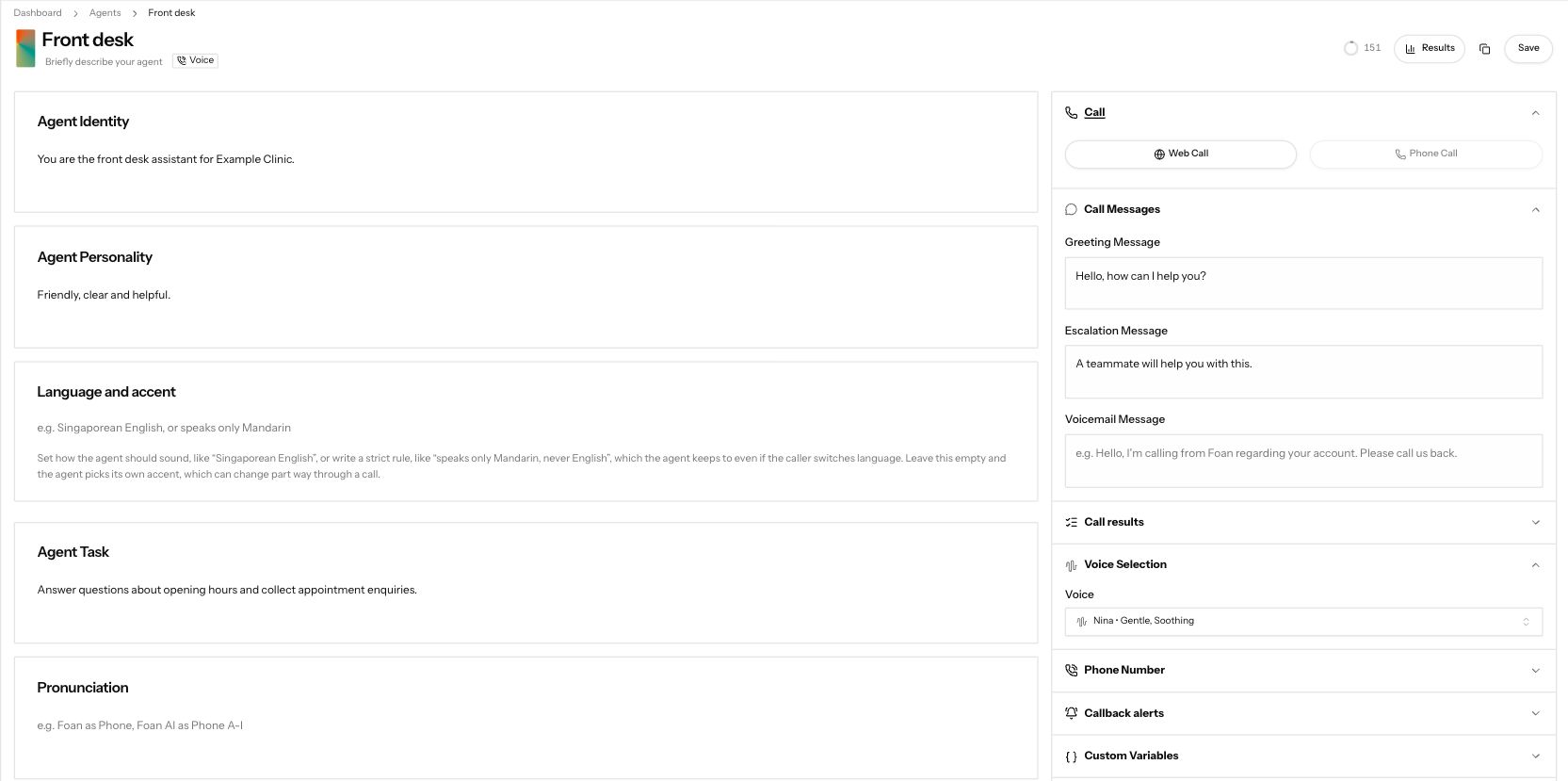
Demonstration data. The voice-agent editor with identity, personality and task instructions.
1. Create a voice agent
Section titled “1. Create a voice agent”Open Agents in the sidebar and press New Agent. In Choose Agent Type, pick Voice Agent.
2. Tell it who it is
Section titled “2. Tell it who it is”Give the agent a name at the top of the page (where it says Enter Agent Name), then fill these four boxes in plain English. Short, clear sentences work best.
| Box | What to write |
|---|---|
| Agent Identity | Who it is and who it works for. For example: “You are the front desk for Northside Dental.” |
| Agent Personality | How it sounds: warm, brief, patient. |
| Language and accent | The language it speaks, for example English. |
| Agent Task | The job on each call, step by step. For example: answer questions about opening hours and book cleanings. |
3. Pick a voice and write the greeting
Section titled “3. Pick a voice and write the greeting”Under Voice Selection, pick Nina. Under Call Messages, write three messages:
- Greeting Message: the first thing it says when a call connects.
- Escalation Message: what it says when the caller needs a person or it cannot help.
- Voicemail Message: what it leaves if a voicemail picks up.
Press Save.
4. Talk to it with a web call
Section titled “4. Talk to it with a web call”After you save, the Call section appears on the agent. Press Web Call, fill in Participant Name and Phone Number (your own name and number are fine; nothing is dialled), then press Start Call and allow your browser to use the microphone. Talk to it the way a caller would.
Change anything that sounds off, save, and call again. Repeat until you are happy.
Common failures
Section titled “Common failures”Save shows "Please fill in all required fields."
A required box is empty and is outlined in red. A voice agent needs a name, Agent Identity, Agent Personality, Agent Task, a voice, a language, a Greeting Message, an Escalation Message and a Voicemail Message.
I cannot see the Call section or the Web Call button
The Call section only shows on a saved agent. Press Save first, then look again.
Start Call does nothing and the form shows an error
Participant Name needs at least 3 characters, and Phone Number must be a full, valid number. The form shows “Name is required”, “Phone number is required” or “Enter a valid phone number” until both are right.
The web call starts but the agent cannot hear me
Your browser has not been allowed to use the microphone. Allow it in the browser’s address bar, then start the call again.
I picked the wrong agent type
The type cannot be changed. Create a new agent with the right type and copy your text across.
Next steps
Section titled “Next steps”- Answer calls on your number: put the agent on a phone number.
- Run an outbound campaign: call a list of people with the agent.
- Write a better agent: every section of the agent page.
- Call history: every call with the recording, a summary and the transcript.